

Why Google Maps doesn’t work in South Korea
When planning your South Korea trip, you might be surprised to find that Google Maps doesn’t work as expected (which may be what lead you to find this article). Here’s why:
South Korea restricts geographical data from being stored on foreign servers for security reasons. Because of this, Google Maps is pretty limited compared to what you’re used to.
Thankfully, local apps like Naver Map and Kakao Maps work perfectly since they comply with these regulations. After some research (thanks, Reddit!), we found that Naver Map was the best option, and honestly, we couldn’t have navigated Seoul without it.
Note: You’ll need internet access to use this app. I recommend getting either an eSIM (I would get this LGU+ option with Airalo) or a local SIM card. We went with this local SIM bundled with a T-money card that we pre-ordered and picked up at Incheon Airport – super convenient and it gave us a T-money card we could use to catch the train into Seoul.
Download and Setup
Naver Map is available on both Apple and Android. If you prefer planning your trip on a computer you can also use the desktop version of Naver Map.
The app is available in Korean, Chinese, Japanese, and English, and should default to your device settings when setup. If it doesn’t, here’s how to switch it to English:
How to convert Naver Map to English
- Tap the three lines in the top left corner.
- Select the Settings (⚙️) icon.
- Choose Language (언어).
- Pick English.
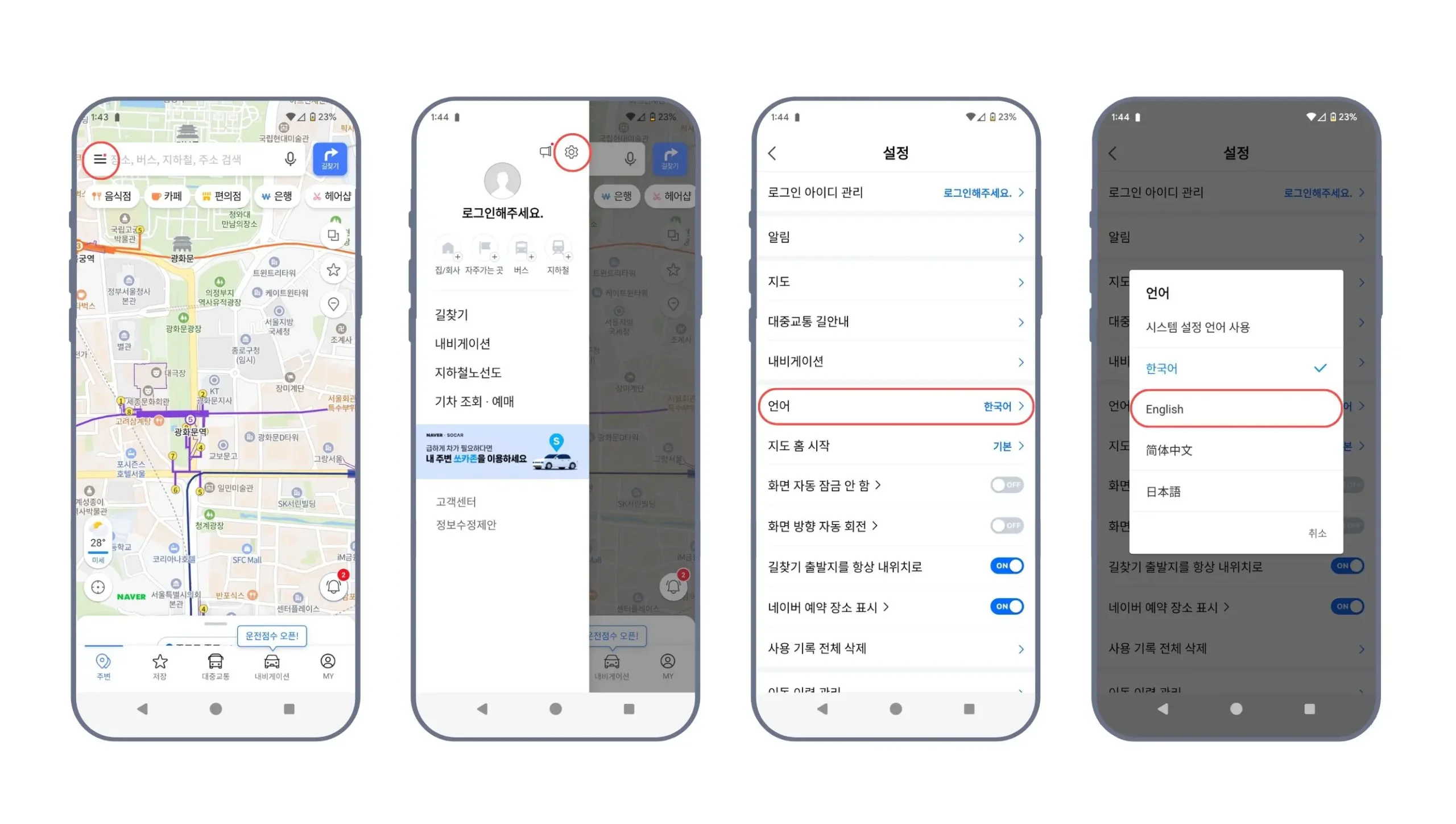
The app will translate all buttons and actions into English, but business names, addresses, and reviews will remain in Hangul. This might seem overwhelming at first, but don’t worry – I’ve outlined how to easily navigate and use the features below.
Do I need to create a Naver account?
No, you don’t need an account to use Naver Map.
Having an account lets you bookmark locations and leave reviews, but we read that some people have trouble signing up with a foreign phone number. We decided to skip the account and the app worked perfectly fine for everything we needed.
Since we couldn’t save places in the app, we just copied and pasted addresses or business names when we needed them. We mostly used Naver Map to discover restaurants and whenever we found somewhere we wanted to try later, we’d just screenshot it.
How to use NAVER Maps
Listings
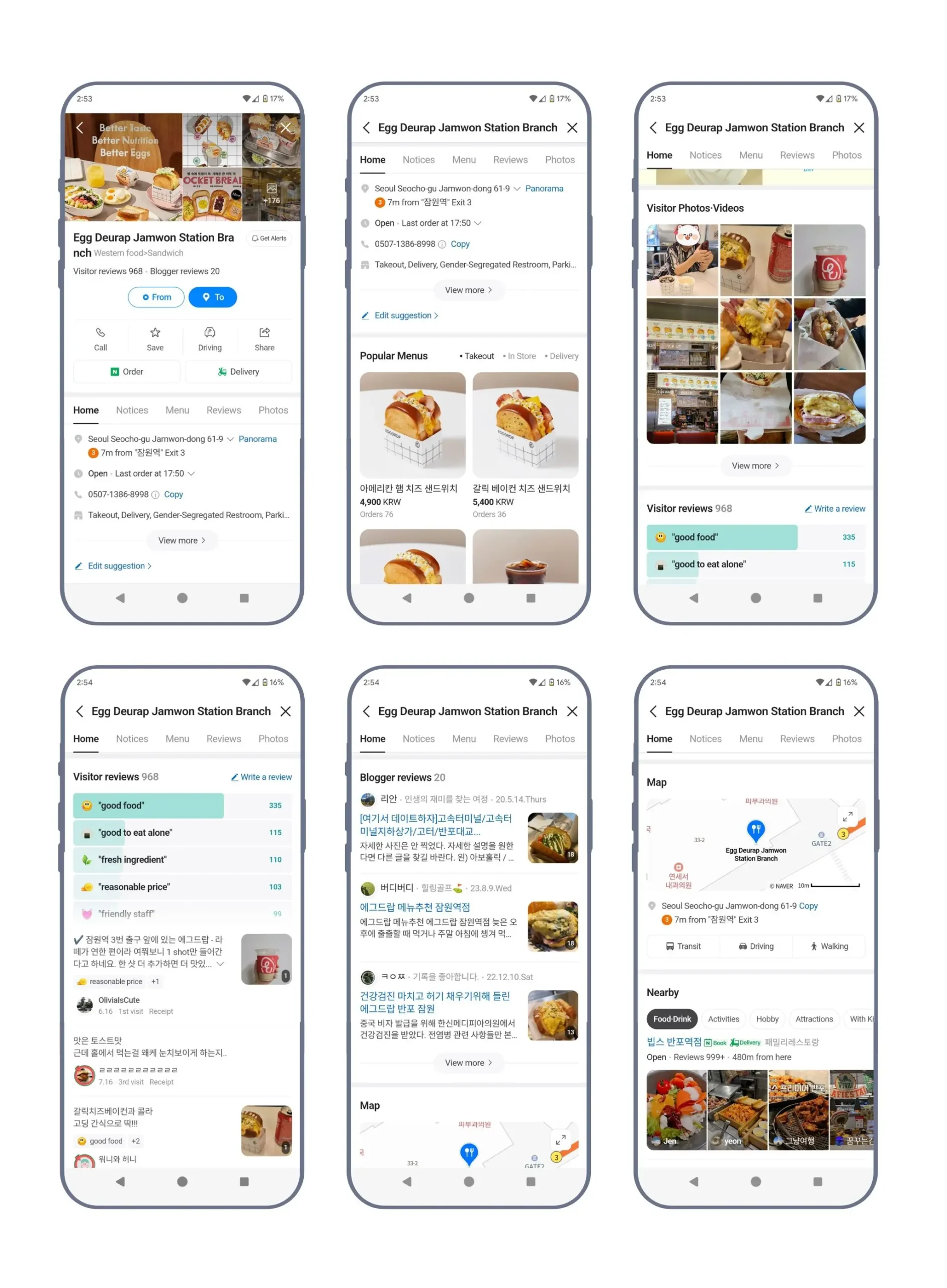
Naver Map’s business listings are incredibly detailed, especially for restaurants. You’ll find tons of info about each place – service style, food quality, pricing, plus photos of both the venue and their menu. The reviews are great too: you get ratings like Google, but also full blog-style reviews that really break down the experience.
Although most reviews are in Korean, you can still view the ratings and see how the business ranks in various categories, which are displayed in English.
Tip: If you, like us, can’t read Korean, you can open the blog articles in Google Chrome and use the ‘translate to English’ feature.
Directions
Most importantly, Naver Map is great for getting around. Just pop in your destination and choose how you want to get there: public transport, driving, taxi, walking, or biking.
Walking
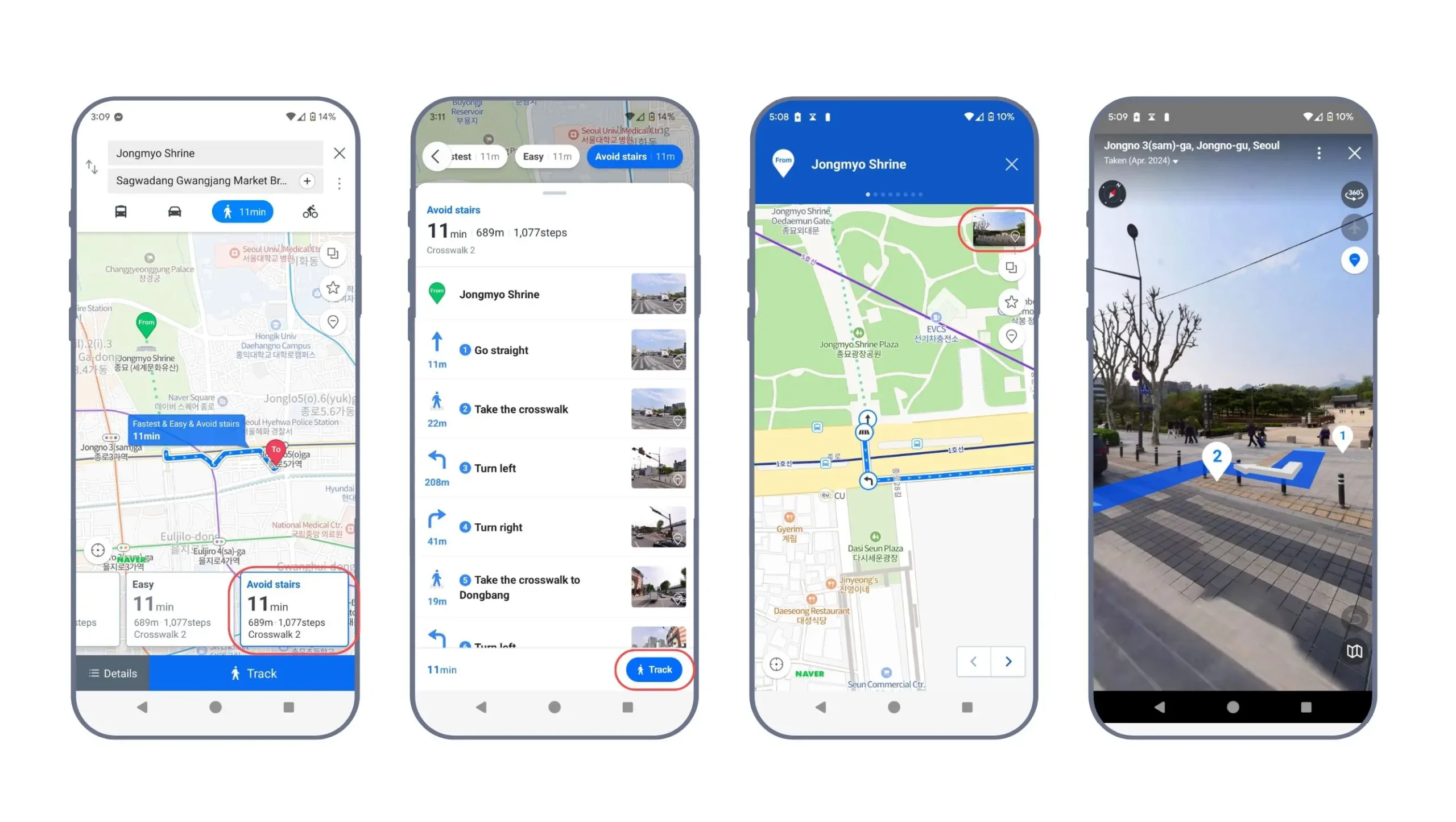
You can choose between different routes – fastest, easiest, or even stair-free (super helpful if you’re rolling your suitcase or have mobility concerns). It even shows you how many crosswalks you’ll encounter, which helps you gauge what the walk will actually be like.
Public Transport
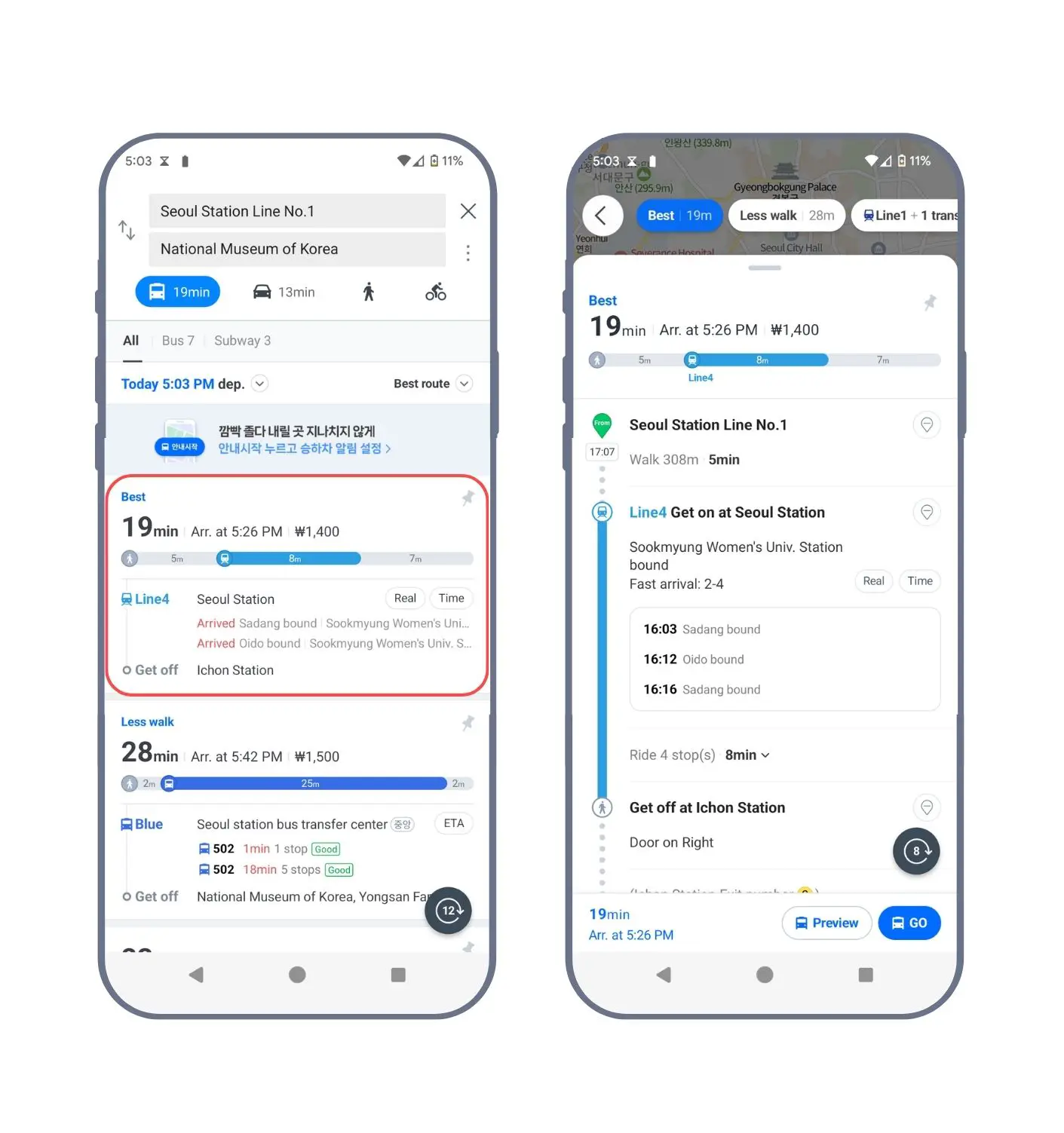
For public transport, you can filter by bus or subway and sort routes by shortest time or fewest transfers. Each route shows the number of stops and fares, which is super helpful for planning.
The subway directions are incredibly detailed – you’ll see which line to take (with the color coding that makes navigation so much easier), which car to board so you’re near the right exit, and exactly which exit number to use at your destination. This last part is actually really helpful as most stations have multiple exits that can lead you in completely different directions.
Bus routes are just as detailed, showing bus numbers, line colours, and real-time arrival updates so you know if your bus is running on time.
Driving and Taxis
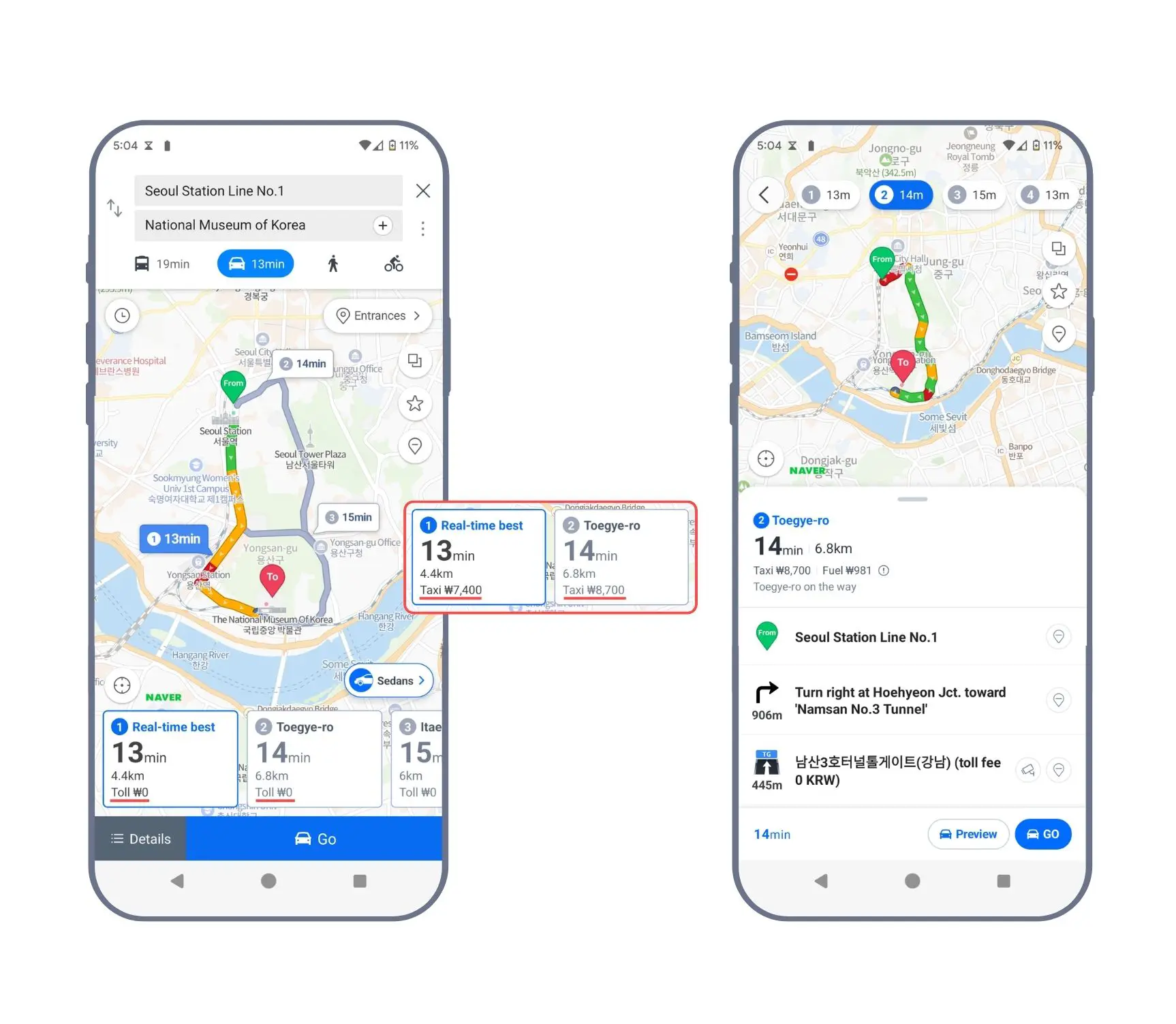
Full transparency: we stuck to public transport and walking, so we didn’t test these features ourselves. But Naver Map is apparently great for these options too – it gives you estimated costs for taxi fares, tolls, and even fuel usage for different routes.
Subway
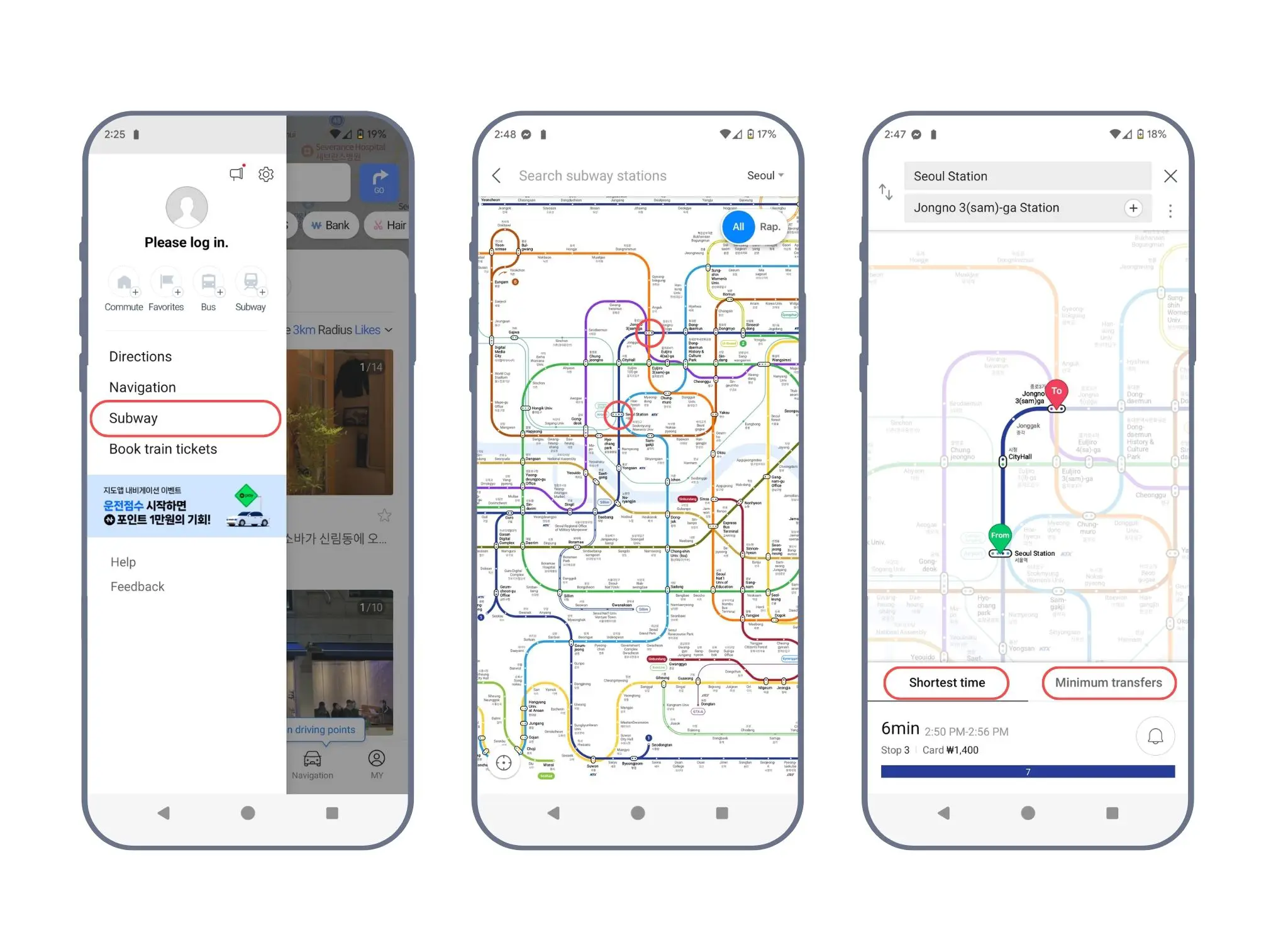
Naver Map also has a standalone subway map feature where you can view the entire Seoul metro system. You can tap your starting and ending stations to see the route, which makes it way easier to visualize all the lines, connections, and transfers you’ll need to make.
Smart Around
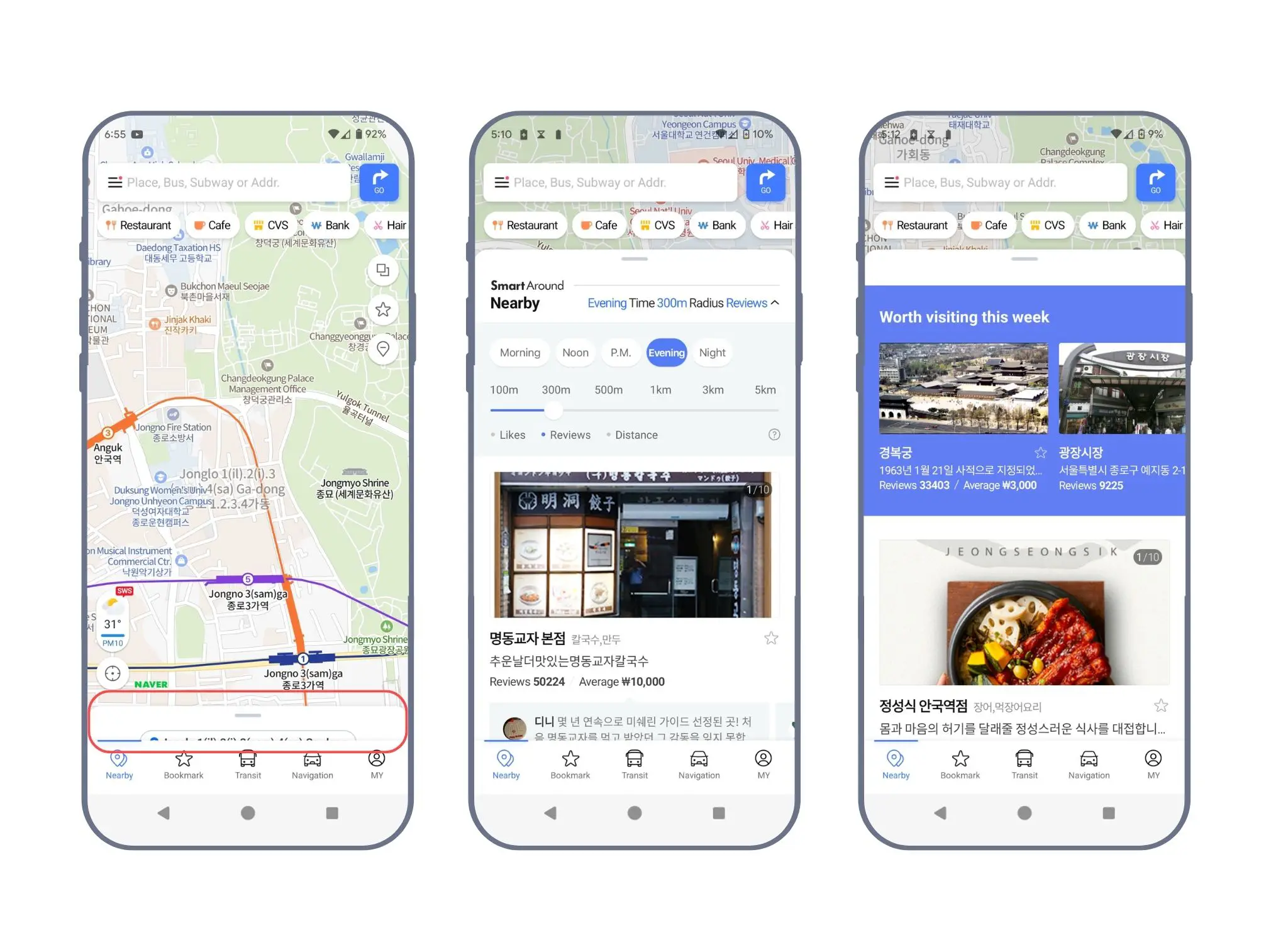
The ‘Smart Around’ feature (just swipe up from the home screen) uses AI to suggest places you might like based on your searches and location – cafes, restaurants, attractions, all of it.
Each suggestion also shows the average cost per person, so you can easily filter by what fits your budget.