1. Creating a list in Google Maps
When I start researching a trip, I like to create a Google Maps list so I have somewhere to save all the places I come across.
Here’s how to set one up:
On the App
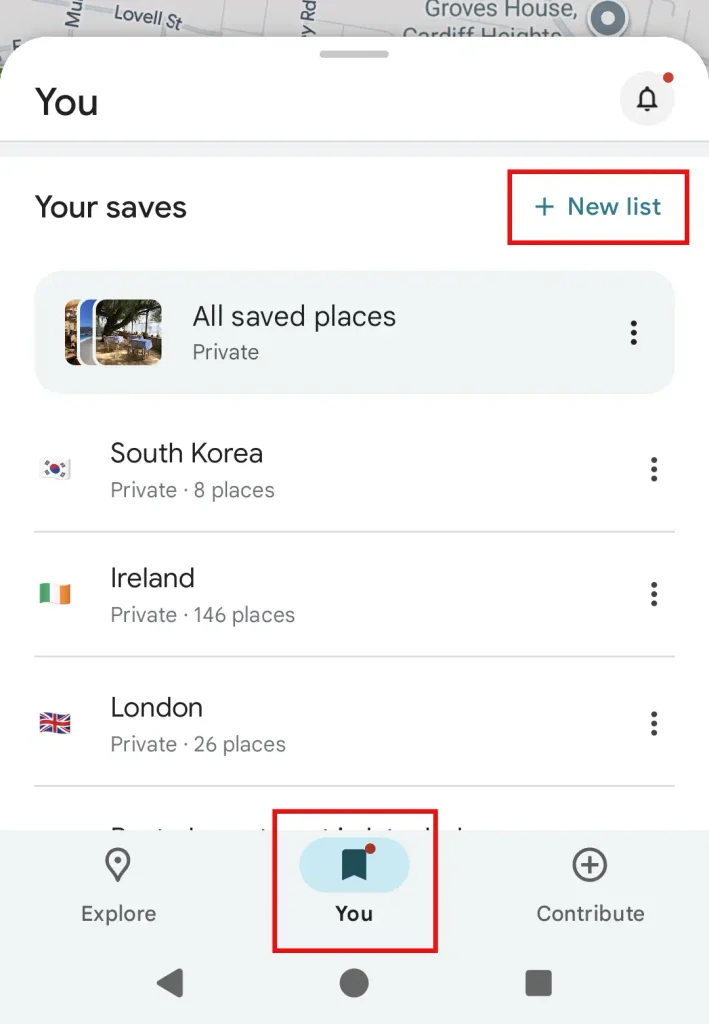
In the Google Maps app, select the You tab and scroll down to Your Saves. Tap + New list, give it a name and select Save.
In your Browser
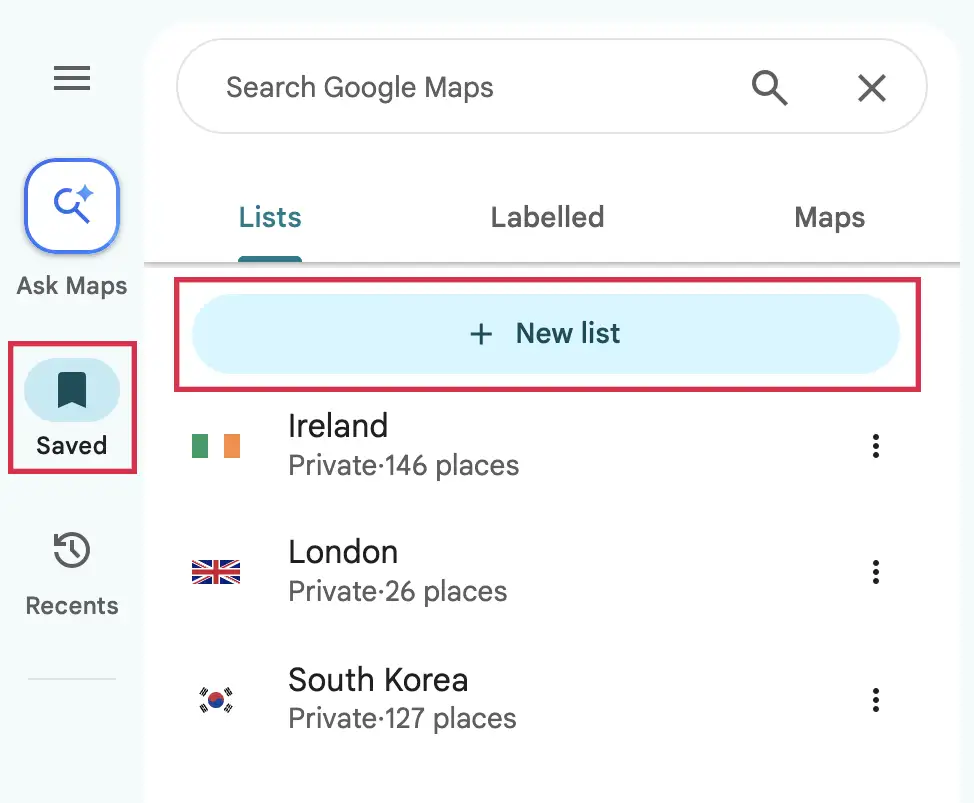
With Google Maps open click Saved in the left-hand menu, then select New list. Give your list a name and it’ll automatically save.
You’ll probably already have a few default lists set up (like Want to Go) but I recommend creating a separate one for each location. I used to save everything to my Want to Go list, but after a while it became a bit of a mess, with places from different trips mixed together.
I usually name mine after the destination, like Türkiye, or each specific city, like Istanbul. You can also create separate lists for things like Istanbul food if you want to keep all the food spots you’ve found in one place.
2. Saving places as I research
Whenever I come across somewhere I want to visit (like a restaurant someone has recommended or a place I’ve seen in a video) I’ll look it up on Google Maps and save it to my trip list.
One of the best features is being able to add notes to each place. I find it really useful for remembering things like a particular dish I want to try at a restaurant or adding a link to the video that mentioned it. When you’ve saved lots of places, especially if your trip is still a while away, it’s sometimes hard to remember why you originally added them.
If you’re travelling with someone else, you can also share your list so you can both save places as you find them and keep everything in one place.
Add tags so they’re easier to sort (App only)
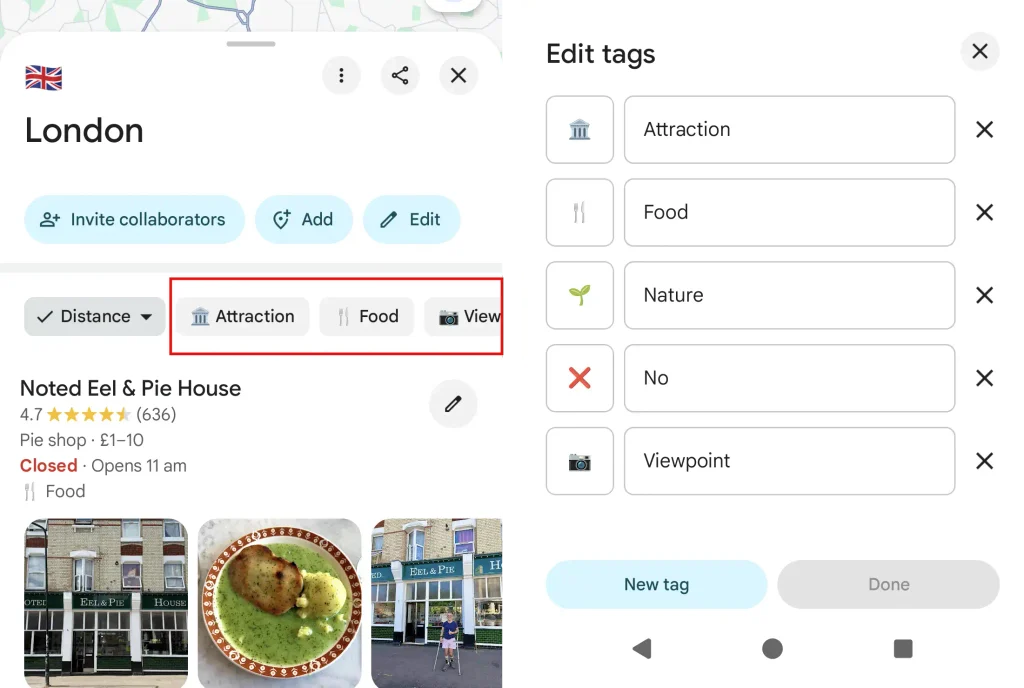
I like to separate my saved places into categories like food, attractions and viewpoints, so I can quickly find what I’m looking for without scrolling through everything I’ve saved.
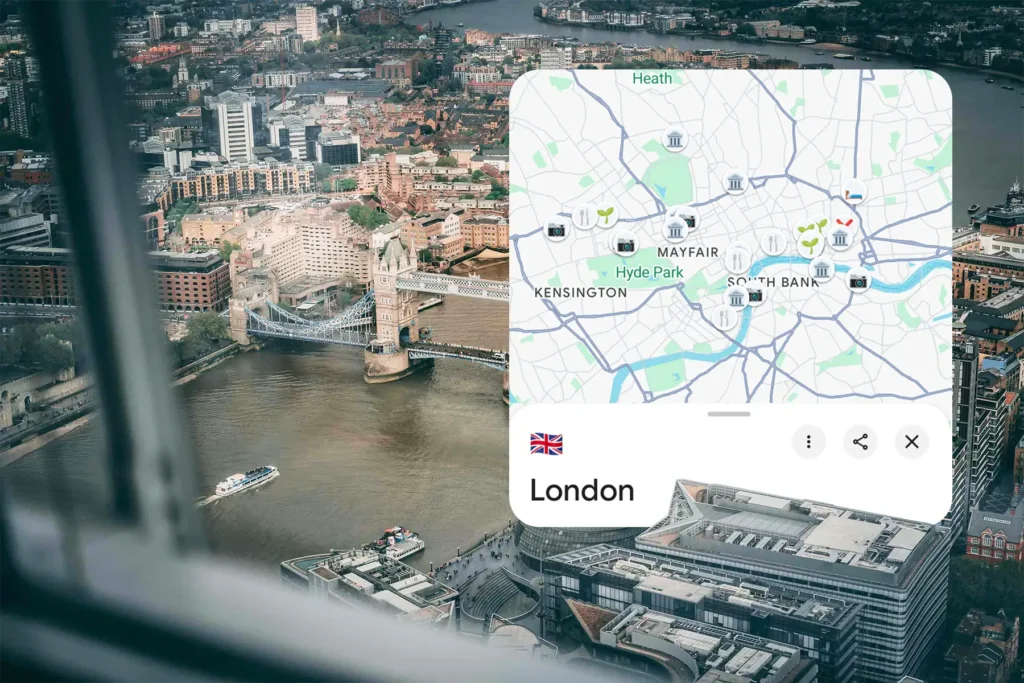
To add a tag, open your list in the app and tap Add a tag. Give your tag a name based on the category and choose an emoji to go with it. This will then show on the map view with your chosen icon.
3. Building my itinerary
Once I’ve saved all the places I’m interested in, I start working out how we can fit them into our itinerary.
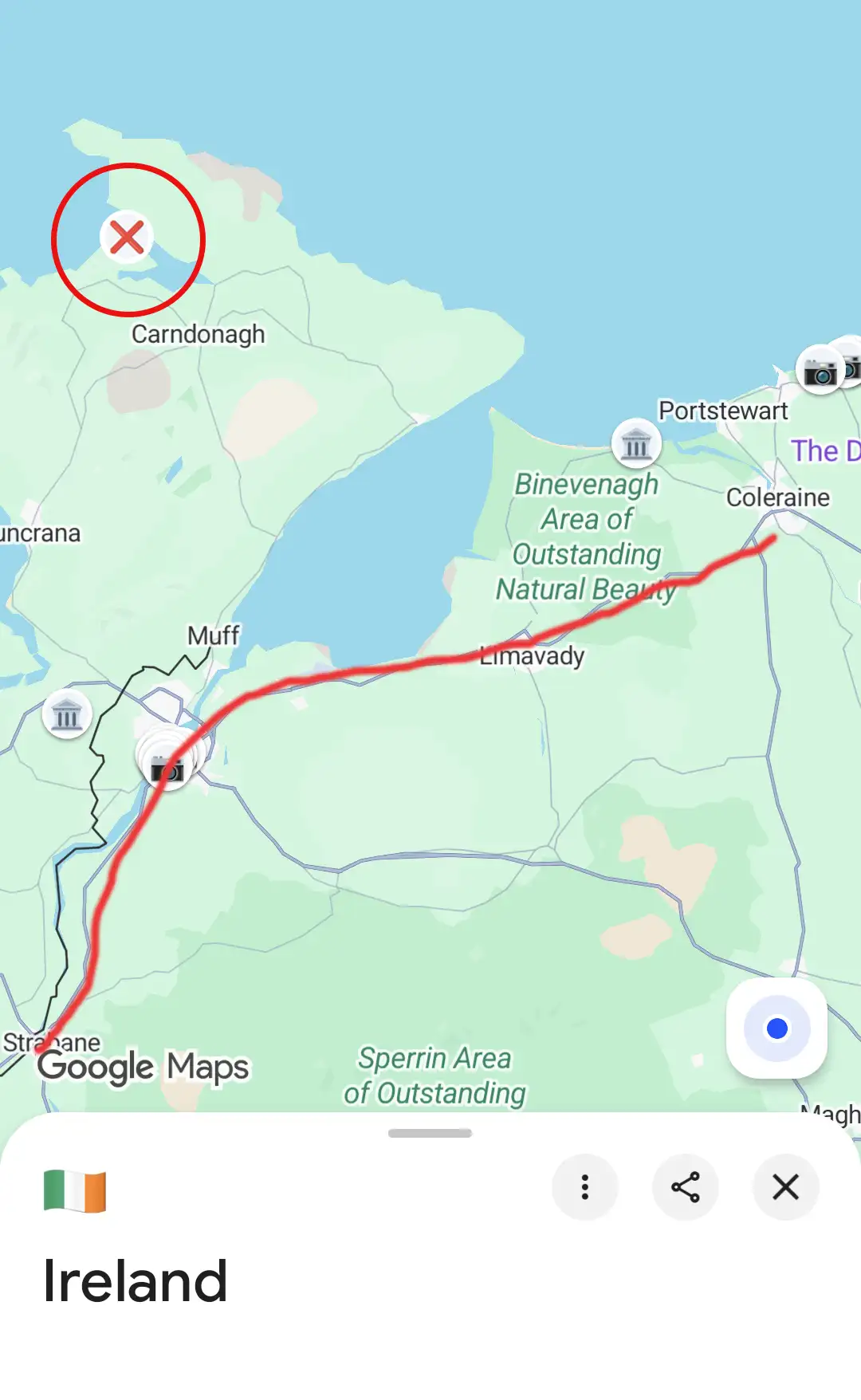
I don’t usually delete anything from my list, even if we decide not to visit somewhere. Instead, I’ll add a tag with an ❌ emoji so I know we’ve ruled it out for now. That way, if our plans change, I can easily go back and see what other options we had.
Grouping places by location
One of the biggest things I consider when planning our itinerary is how close everything is to each other. I try to group places together so we’re not wasting time travelling back and forth between different areas.
Having everything saved on Google Maps makes this much easier because I can see where each place is located and start working out what makes sense to visit on the same day.
Planning a city itinerary
For city trips, I look at which places are within walking distance or a short journey from each other. From there, I can plan each day around a particular area rather than travelling across the city multiple times.
Planning a road trip or travelling around a country
For trips where we’re visiting several destinations, I use Google Maps to work out a route that allows us to visit as many places as possible without spending too much time travelling between them.
If there’s somewhere I really want to visit, I can see whether it fits into our route, whether we could plan a travel day around it or whether it’s too far out of the way to justify the detour.
4. Choosing my accommodation
Once I’ve got a rough itinerary planned, I use Google Maps to work out which areas would be the most convenient to stay in.
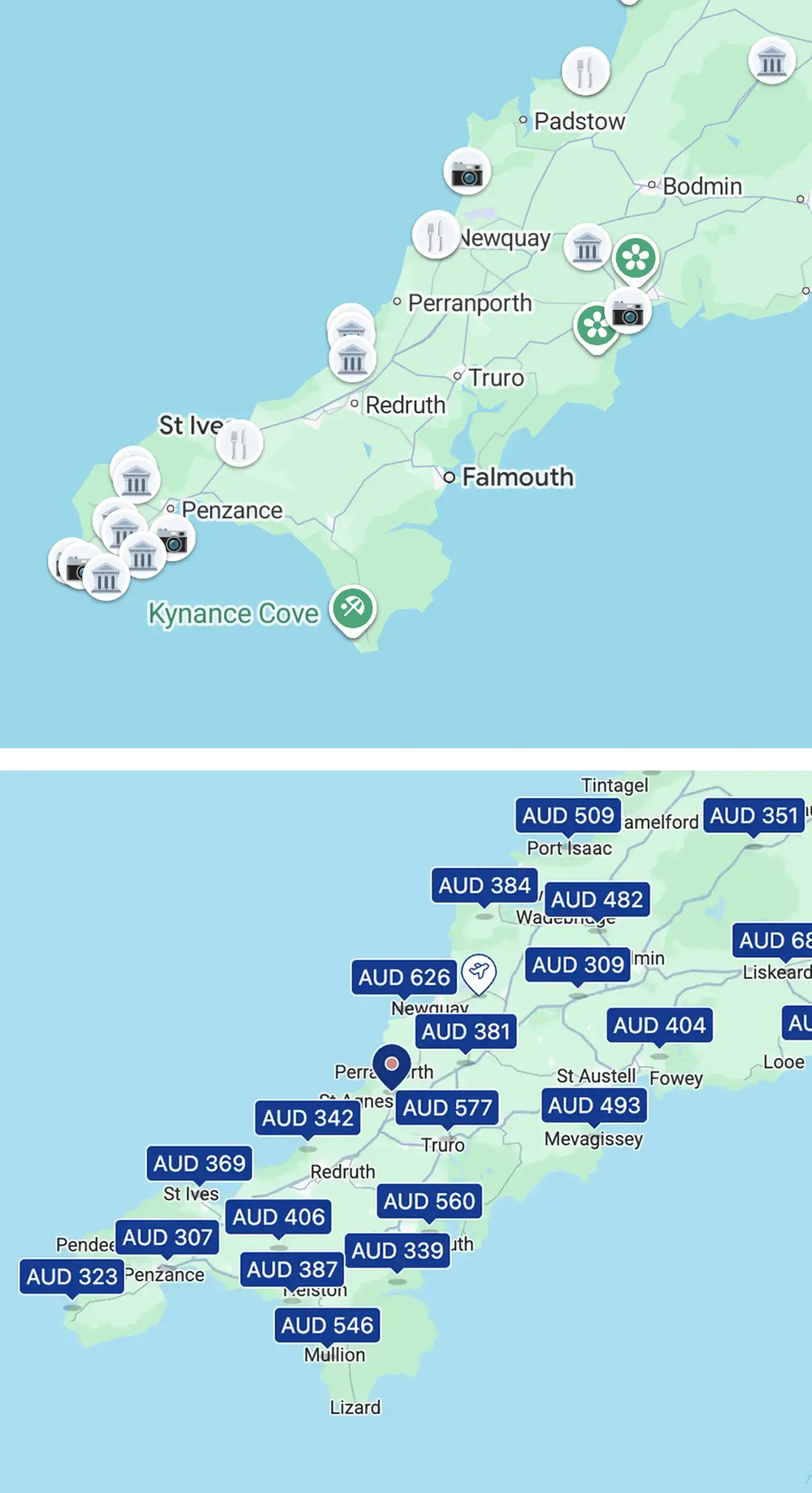
You’ll often find cheaper accommodation further away from the main attractions, but I also like to consider how much extra time and money we’d spend getting around each day. Sometimes it is worth paying a little more to stay somewhere central.
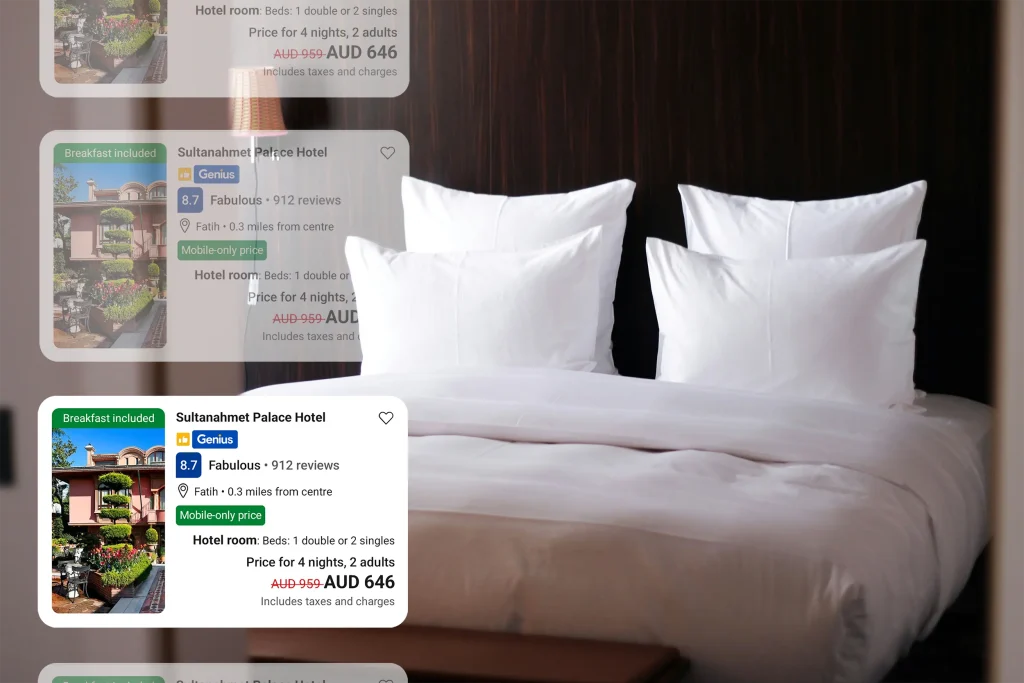
I’ll then head over to Booking.com or Airbnb and use their map views to compare accommodation locations with the places I’ve saved in Google Maps.
Of course, we don’t choose somewhere only based on location. We also consider the price and reviews, but if everything else is fairly similar, I’ll usually choose somewhere that’s the most convenient for our itinerary.
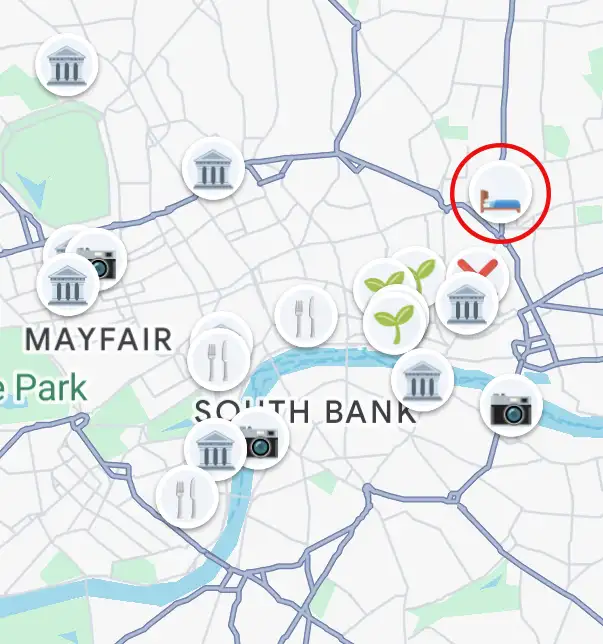
Once I’ve booked our accommodation, I’ll also save it to my Maps list so I can easily find it whenever I need directions.
It does take a little time to save and organise everything in Google Maps, but I’ve found that having all my research in one place makes planning our itinerary much easier. It’s also really useful once we’re travelling, as I can easily select somewhere from my saved list and get directions without having to search for the location again.